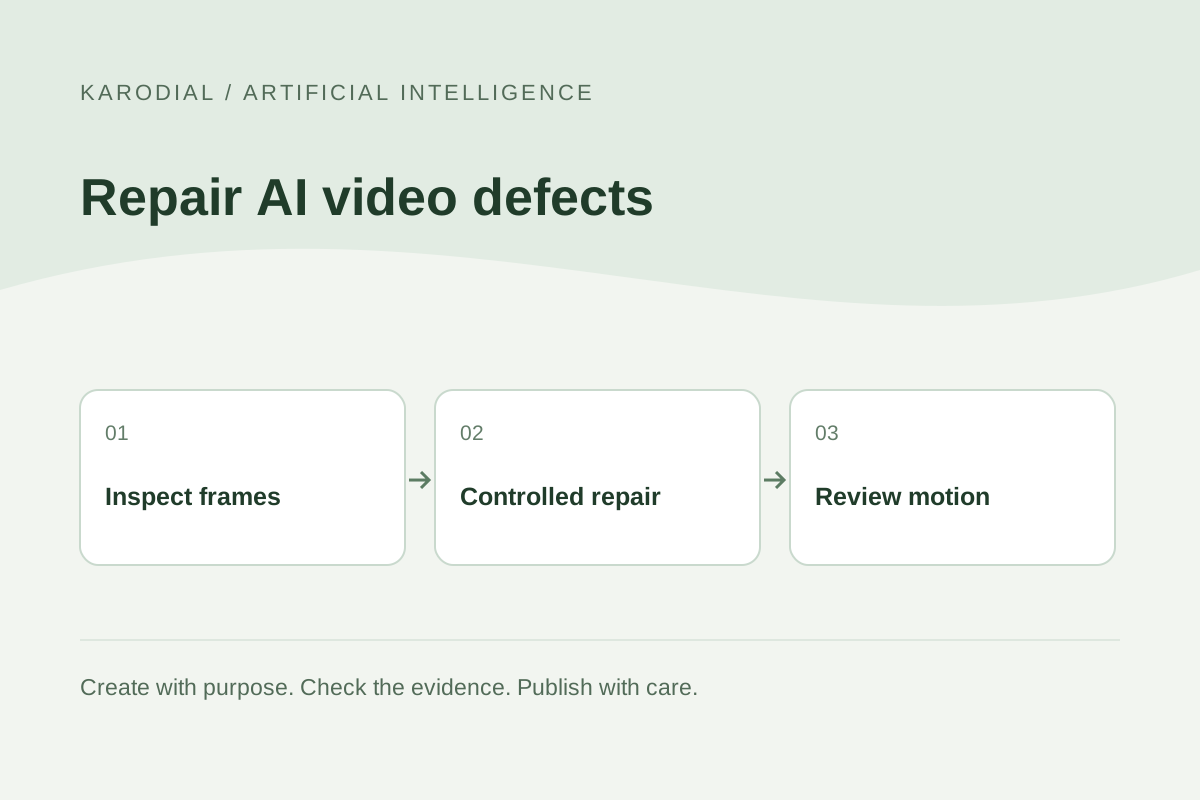
A generated video may look convincing at first and reveal a changing face, fused fingers or a hand passing through an object when examined closely. There is no universal prompt that reliably repairs every defect. The useful approach is to locate the problem, understand what the shot must communicate and choose the least disruptive correction. Sometimes that means a new generation. Sometimes a shorter edit or ordinary footage is the better choice. This guide describes a practical review workflow for an invented business explainer, with no promise that a particular tool can recover information that never existed.
Locate the defect before changing the prompt
Watch the whole clip at normal speed, then inspect the difficult moment slowly. Write down what changes and when. A face may drift during a turn, while a hand may fail only when it grips a handle. These are different problems. Save the original clip and note the affected interval so later comparisons use the same evidence.
Check the visual purpose of that moment. If the viewer needs to understand how a product opens, hiding the handle behind a crop may remove the instruction. If the hand is incidental to a background scene, replacing the shot may be straightforward. Do not begin with a long collection of corrective phrases. First decide which visible detail is wrong and which detail the final video must preserve.
Review the starting image and references
Inspect source images for blur, hidden fingers, ambiguous edges and inconsistent lighting. A poor reference can leave the model guessing. Runway's image-to-video guidance specifically notes that source artifacts in faces or hands can intensify in the generated clip. A clear starting image is useful preparation, but it does not guarantee that every later frame will remain correct.
Use references you are authorized to upload. Choose images showing the relevant pose and object relationship clearly. Avoid mixing several incompatible versions of a character without a reason. In a fictional KARODIAL explainer, a presenter may hold a plain card rather than a detailed device whose shape changes during motion. Keep a separate reference record so a successful iteration can be reproduced as closely as the tool permits.
Reduce the number of moving demands
A shot asking for a person to turn, speak, gesture, pick up an object and move through a crowd creates many opportunities for inconsistency. Consider breaking the action into smaller shots. Keep one important action in focus and use camera movement only when it contributes to the explanation. This is an editing decision, not a guarantee about model behavior.
For our fictional enquiry video, the presenter can stand still while a separate diagram shows the process. The hand no longer needs to manipulate several floating cards. If movement is necessary, describe it plainly and review a simple version before adding more. Keep notes on what changed between attempts. Changing the pose, camera, reference and action together makes it harder to identify which adjustment helped.
Regenerate with a specific correction goal
When the defect affects a central action, try a revised generation with a clear goal. Describe the intended action and its timing. Avoid relying on repeated quality words such as perfect or flawless. Those words do not define the geometry of a grip or the continuity of a face. Provider controls differ, so use only the options supported by the selected model.
Compare a small number of candidates against the same checklist. Does the hand keep a plausible relationship with the object? Does the face remain recognizable throughout the turn? Does the improved region introduce a new problem elsewhere? Retain only candidates that work as complete shots. An attractive first frame does not establish that the resulting video is ready for the final edit.
Use localized still-image repair carefully
If a defect begins in the reference image, an authorized image-editing workflow may allow a targeted selection or mask. Adobe documents selection-based generative edits for controlling a particular region. Keep the original layer, select the area deliberately and compare surrounding details afterward. A tool's local-edit capability should not be interpreted as a promise that every untouched pixel or identity feature remains exact.
A repaired still is not automatically a repaired video. If you substitute only one frame, the change may flash or jump at playback speed. If you use the corrected image to regenerate a shot, the later frames still need review. Keep those workflows separate in your notes. This avoids presenting a successful screenshot as evidence that a whole moving sequence has been fixed.
Check continuity across neighboring frames
Review the frames before and after the difficult moment. Look for changing finger count, shifting accessories, eye alignment, jaw shape and inconsistent contact with objects. Some apparent defects are ordinary motion blur, so judge them in context. The goal is a coherent viewing experience rather than forcing every moving frame to resemble a studio portrait.
For complex repairs, a video editor or compositor may need tracking and frame-aware work. Only attempt that route when the time and skill are justified. Compare the cost with replacing the shot. A different camera angle, a cutaway or a shorter action may tell the same story more clearly. Do not claim that upscaling alone reconstructs anatomically correct detail; sharper invented detail can still be wrong.
Preserve identity and truthful context
When a real person's likeness is involved, stay within the authorized purpose. Do not turn a repair request into an unapproved change of identity, expression or apparent statement. Keep an approved reference and review the result with the appropriate person. A technically smoother face can still be an inaccurate representation of the subject.
Distinguish conceptual characters from real people in the project's records and presentation. If a realistic synthetic scene might mislead viewers about an actual event, review the platform's disclosure requirements. Repairing an artifact does not make the scene factual. This matters in a business video where a generated presenter could otherwise be mistaken for a real employee giving a genuine testimonial or demonstrating a product that was never tested.
Review the exported video
Export a draft at the intended delivery settings and watch it again. Cropping, resizing, compression and caption placement can change what viewers notice. Inspect the video on a phone as well as a larger screen. Check the image at normal speed, because a flaw that appears minor while scrubbing may be distracting during ordinary playback.
Keep a final review sheet identifying the chosen clip, source reference, correction approach and remaining limitation. Do not leave the team to guess which similarly named file is approved. Save the editable project and original media separately from the delivery version. That makes later corrections possible and prevents an unreviewed candidate from replacing the approved shot during a routine website or social update.
Choose the clearest acceptable result
Imagine the fictional presenter points toward an enquiry diagram, but the pointing fingers merge during a wide gesture. The team first checks the reference, then tries a smaller gesture and a shorter shot. If the hand remains distracting, it replaces the presenter moment with a readable animated arrow and keeps the explanation intact. No essential product action has been hidden.
This is a successful production decision even if the original clip was not salvageable. AI video work includes deciding when to stop generating. Set a reasonable review budget, preserve evidence and choose a replacement when reliability is better. The aim is not to defend every generated frame. It is to deliver a coherent video whose faces, hands and object interactions support the story without introducing avoidable confusion.